Docs / Outbound Messaging
RAP Events
With release 2504 (9.32504) the ASAPIO Integration Addon supports RAP events as triggers for outbound interfaces. SAP offers local consumption of RAP Business Object events since S/4HANA 2023, opening up integration possibilities for all new events added to new RAP Business Objects.
Overview
RAP (ABAP RESTful Application Programming Model) Business Events are the modern replacement for classical ABAP change pointers and BAdI-based event triggers. They are natively supported by the S/4HANA core and offer a clean-core compliant way to react to business object lifecycle events and push them to any external messaging platform via ASAPIO.
Prerequisites
- SAP S/4HANA 2023 or later
- ASAPIO Integration Add-on release 9.32504 or later
- ASAPIO Event Studio
Baseline Configuration
Create default bgRFC destination BGPF
First check if this default destination is already present in your system — most systems will already have it. If not, follow the SAP Help documentation or execute the following steps:
- Go to transaction SBGRFCCONF.
- Click the tab Define Inbound Dest. and press Create.
- Enter Inb. Dest. Name BGPF.
- Restriction: Do not enter information for Logon/Server Group or Add Queue Prefix.
- Choose Save.
Create application-specific bgRFC destination
ASAPIO's RAP event processing uses bgRFC calls. Create a dedicated destination:
- Go to transaction SBGRFCCONF.
- Click the tab Define Inbound Dest. and press Create.
- Enter an Inb. Dest. Name of your choice (e.g. ASAPIO).
- Choose Save.
Setup connector instance
Set up the connector instance following the Connectors guide for your specific connector type. Then add the application-specific bgRFC destination in the connection instance's default values:
- Add attribute
ACI_BGRFC_DESTINATIONand set its value to the bgRFC destination name created above.
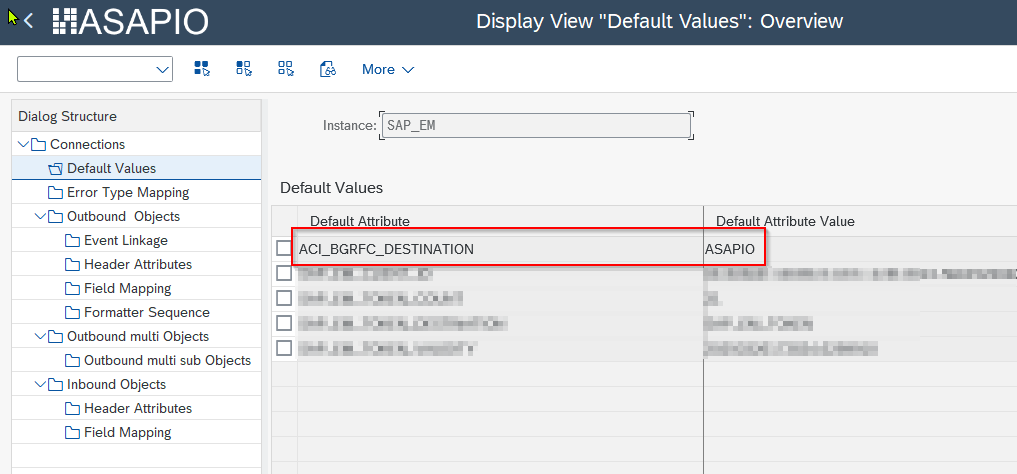
ACI_BGRFC_DESTINATION in the default values tabActivating RAP Events
Via SAP GUI
Since release January 2026, it is possible to activate RAP event linkages in the classic SAP GUI configuration. Download one of the Event Handler classes from the Content Catalog — the class source code contains the exact values to enter. For example, for Products, open class /ASARAP/CL_PRODUCT_HANDLER to find the constants:
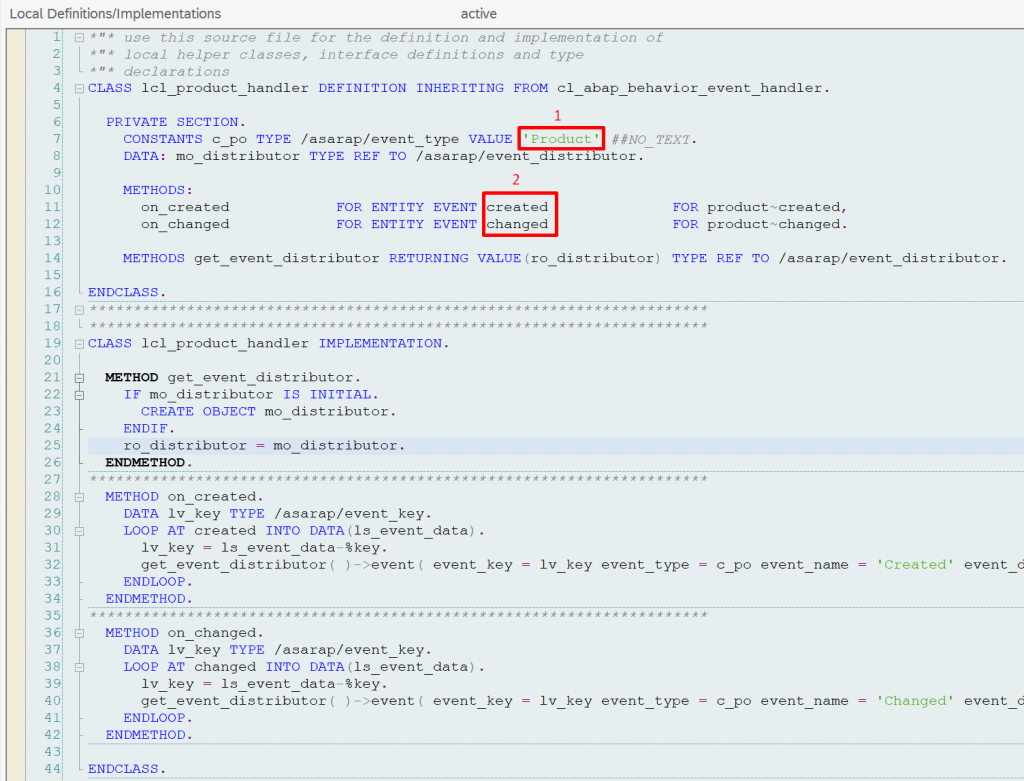
To configure the event linkage:
- Transaction: /ASADEV/ACI_SETTINGS
- Select the Outbound Object for which to activate the linkage
- Go to section RAP Event Linkage
- Add a new entry and specify:
- Event Type: RA
- Object Name: RAP Business Object Alias (1 in screenshot above)
- Event Name: RAP Event (2 in screenshot above)
- Active: check to activate

/ASADEV/ACI_SETTINGSVia Event Studio
Follow the Event Studio guide to deploy interfaces. The Event Studio includes predefined events for all supported RAP Business Objects:
| Business Object | Supported Events |
|---|---|
| Equipment | Created, Changed |
| BusinessPartner | Created, Changed |
| BillingDocument | Created, Changed, Canceled |
| CreditMemoRequest | Created, Changed, Deleted, Order-related billing status changed, Total block status changed, Overall rejection status changed, Overall processing status changed, Item created, Item changed, Item deleted, Item overall processing status changed, Item order-related billing status changed |
| CustomerReturn | Created, Changed, Deleted, Item created, Item changed, Item deleted |
| DebitMemoRequest | Created, Changed, Deleted, Order-related billing status changed, Total block status changed, Overall rejection status changed, Overall processing status changed, Overall credit check status changed, Item created, Item changed, Item deleted, Item overall processing status changed, Item order-related billing status changed |
| FunctionalLocation | Created, Changed |
| InboundDelivery | Created, Changed, Deleted |
| InspectionLot | Created, Changed, Canceled, Operation created |
| JournalEntry | Created |
| MaintenanceNotification | Created, Completed, Set to in process |
| MaintenanceOrder | Approved, Closed, Rejected, Set to ready to schedule, Set to Work done, Set to Work started, Set to Work not performed, Set to Ready for execution, Set to deletion flagged, Set to in planning, Set to in preparation, Set to Maintenance work completed, Set to technical completed, Submitted for approval, Order Phase control activated/deactivated, Operation phase control activated/deactivated |
| MaterialDocument | Created, Canceled |
| OutboundDelivery | Created, Changed, Deleted, Delivery block changed, GI status changed, Packing status changed, Picking status changed, Item created, Item changed, Item deleted |
| Product | Created, Changed |
| PurchaseContract | Created, Changed, Target value changed, Validity changed, Item created, Item deleted, Item restored, Item blocked, Item unblocked, Item target quantity changed, Item net price amount changed |
| PurchaseOrder | Created, Changed, Approved, Approval rejected, Item created, Item changed, Item deleted, Item blocked, Item unblocked |
| PurchaseRequisition | Created, Changed, Approved, Rejected, Item approved, Item rejected, Item created, Item changed |
| PurchaseSchedulingAgreement | Created, Changed, Released |
| PurchasingInfoRecord | Created, Changed |
| QualityNotification | Created, Activated, In process, Changed, Not approved, For approval, Deletion flag set, Completed, Processor assigned, All tasks completed, Defect created, In process again, Approved |
| QualityTask | Created, Changed, Completed, Set to in process, Processor assigned |
| RequestForQuotation | Published, Follow-on document created |
| SalesContract | Created, Changed, Deleted, Item created, Item changed, Item deleted |
| SalesInquiry | Created, Changed, Deleted |
| SalesOrder | Created, Changed, Deleted, Approval status changed, Billing block status changed, Delivery confirmation status changed, Delivery status changed, Overall delivery block status changed, Rejection status changed, Overall processing status changed, Overall credit check status changed, Item created, Item changed, Item deleted, Item billing block status changed, Item delivery block status changed, Item delivery confirmation status changed, Item delivery status changed, Item general incompletion status changed, Item profit center changed, Item rejection status changed, Item overall processing status changed, Item WBS element changed |
| SalesOrderWithoutCharge | Created, Changed, Deleted |
| SalesPricingConditionRecord | Created, Changed, Deleted, Amount changed, Condition ratio changed, Validity period changed |
| SalesQuotation | Created, Changed, Deleted, Overall rejection status changed, Overall processing status changed, Approval status changed, Item created, Item changed, Item deleted, Item rejection status changed, Item general incompletion status changed, Item overall processing status changed |
| SalesSchedulingAgreement | Created, Changed, Deleted, Item created, Item changed, Item deleted |
| ServiceEntrySheet | Created, Changed |
| ServiceOrder | Created, Changed, Deleted, Completed, Released, Release revoked, Change when released |
| SupplierInvoice | Created, Canceled |
| SupplierQuotation | Submitted, Awarded, Follow-on document created |
| WorkCenter | Created, Changed, Deleted |
Custom Payloads
To attach a custom payload design to a RAP event:
- Create your Payload Design.
- In Event Studio, Add event definition:
- Specify your Payload Design in Catalog Object Id / Version.
- Enter the event information in Event Type, Object ID, and Event Name.
Your Payload Design will then appear in the Data Catalog with the RAP event listed as a deployment trigger.